Introduction
This process allows you to insert a template into template. You can insert a template for a single object, as in text that refers to a primary address; or you can insert a template for a collection, as in a series of statements about all the addresses.
This example inserts a template for the primary address and a template for contacts.
|
QUICK STEPS |
| 1 |
In the application, navigate to the Communication Template Lookup screen |
| 2 |
Create a new template record |
| 3 |
Enter the details |
| 4 |
Save the record |
| 5 |
Return to the Communication Template Lookup screen |
| 6 |
Create a new template |
| 7 |
Enter the details |
| 8 |
Save the record |
| 9 |
In S3, click the Create New File icon |
| 10 |
Select the Object Type |
| 11 |
Enter the correspondence details |
| 12 |
Click Finish |
| 13 |
Click the Open Word Template icon |
| 14 |
Edit the template |
| 15 |
Save the template |
| 16 |
Click the Synchronize icon |
| 17 |
Map the address bookmarks |
| 18 |
Save the correspondence file |
| 19 |
Click the Create New File icon |
| 20 |
Select the Object Type |
| 21 |
Enter the correspondence details |
| 22 |
Click Finish |
| 23 |
Click the Open Word Template icon |
| 24 |
Edit the template |
| 25 |
Save the template |
| 26 |
Click the Synchronize icon |
| 27 |
Map the contact bookmarks |
| 28 |
Save the correspondence file |
| 29 |
Open the parent correspondence |
| 30 |
Click the Open Word Template icon |
| 31 |
Edit the template |
| 32 |
Save the template |
| 33 |
Click the Synchronize icon |
| 34 |
Open the Templates tab |
| 35 |
Configure the template bookmarks |
| 36 |
Save the correspondence file |
Detailed Steps
Step 1. In the application, navigate to the Communication Template Lookup screen.
You are going to create a new template record for a child template.
Step 2. Create a new template record.
Step 3. Enter the details.
Step 4. Save the record.
Step 5. Return to the Communication Template Lookup screen.
This example creates two child templates.
Step 6. Create a new template.
Step 7. Enter the details.
Step 8. Save the record.
Step 9. In S3, click the Create New File icon.
You are going to create a new correspondence file for the first child template.
Step 10. Select the Object Type.
Step 11. Enter the correspondence details.
Step 12. Click Finish.
Step 13. Click the Open Word Template icon.
You are going to write the template from here.
Step 14. Edit the template.
Step 15. Save the template.
Step 16. Click the Synchronize icon.
This imports all the address bookmarks.
Step 17. Map the address bookmarks.
Step 19. Save the correspondence file.
Step 20. Click the Create New File icon.
This example creates two child templates.
Step 21. Select the Object Type.
Step 22. Enter the correspondence details.
Step 23. Click Finish.
Step 24. Click the Open Word Template icon.
Step 25. Edit the template.
Step 26. Save the template.
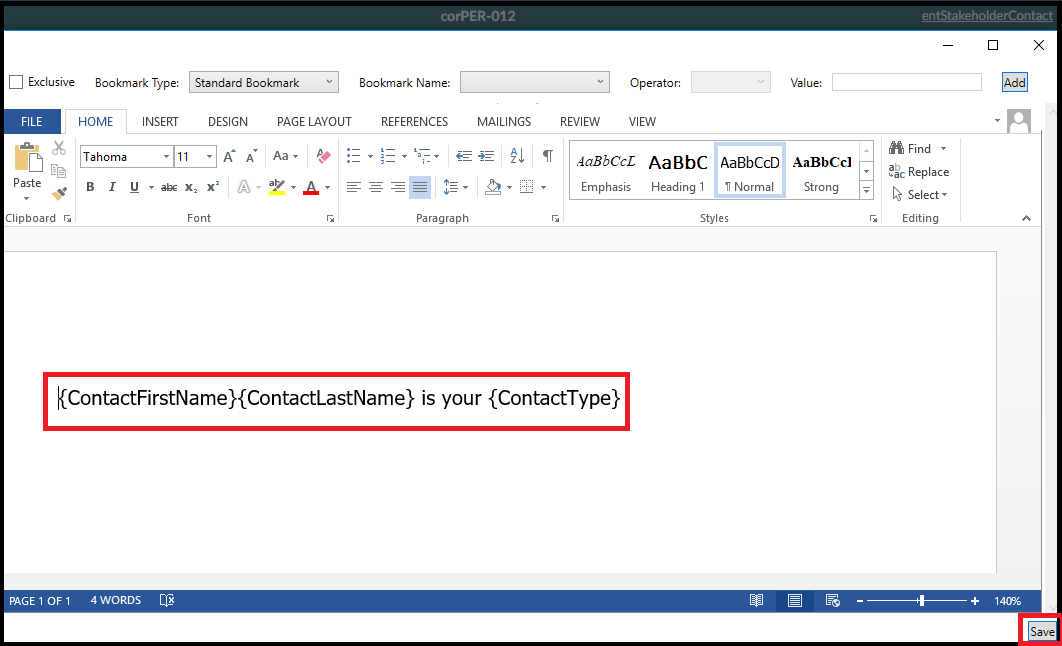
Step 27. Click the Synchronize icon.
Step 28. Map the contact bookmarks.
Step 29. Save the correspondence file.
Step 30. Open the parent correspondence.
You're going to edit the original template to include the child templates created previously.
Step 31. Click the Open Word Template icon.
Step 32. Edit the template.
You insert a template bookmark the way you'd insert any bookmark: assign it a name, select the type (Template), and click Add.
Step 33. Save the template.
Step 34. Click the Synchronize icon.
This imports the new template bookmarks you just added.
Step 35. Open the Templates tab.
Step 36. Configure the template bookmarks.
In this example, PrimaryAddress is an entity-based bookmark. It will only print one entity. In this case, it will print the primary address.
Contacts is a collection-based bookmark. It will print the template for each object.
Step 37. Save the correspondence file.
Now when the user generates the parent correspondence, it will insert the child templates to generate the recipient's primary address and contacts.
This post is part of the Correspondence topic. Click here to open the Correspondence Overview.
#Communications