Introduction
Data table grouping allows the user to sort collections into groups by specific column values. Data table filtering allows the user to filter the data table by entering specific criteria for the particular data table column value that is already loaded to the data table. These are client side features that manifest instantly when used, because there is no binding or calling involved: the user is simply rearranging the browser display for their own convenience.
These two features help the user find the value they want easily, especially if the Data table collection is large. You can apply them to any data table, including a lookup form's results data table.
|
Quick Steps |
| 1 |
Select the data table |
| 2 |
Add the control |
| 3 |
Open the data table properties and select Allow Grouping and Allow Filtering |
| 4 |
Save the form |
Prerequisites
The data table you want to sort and filter must exist.
Detailed Steps
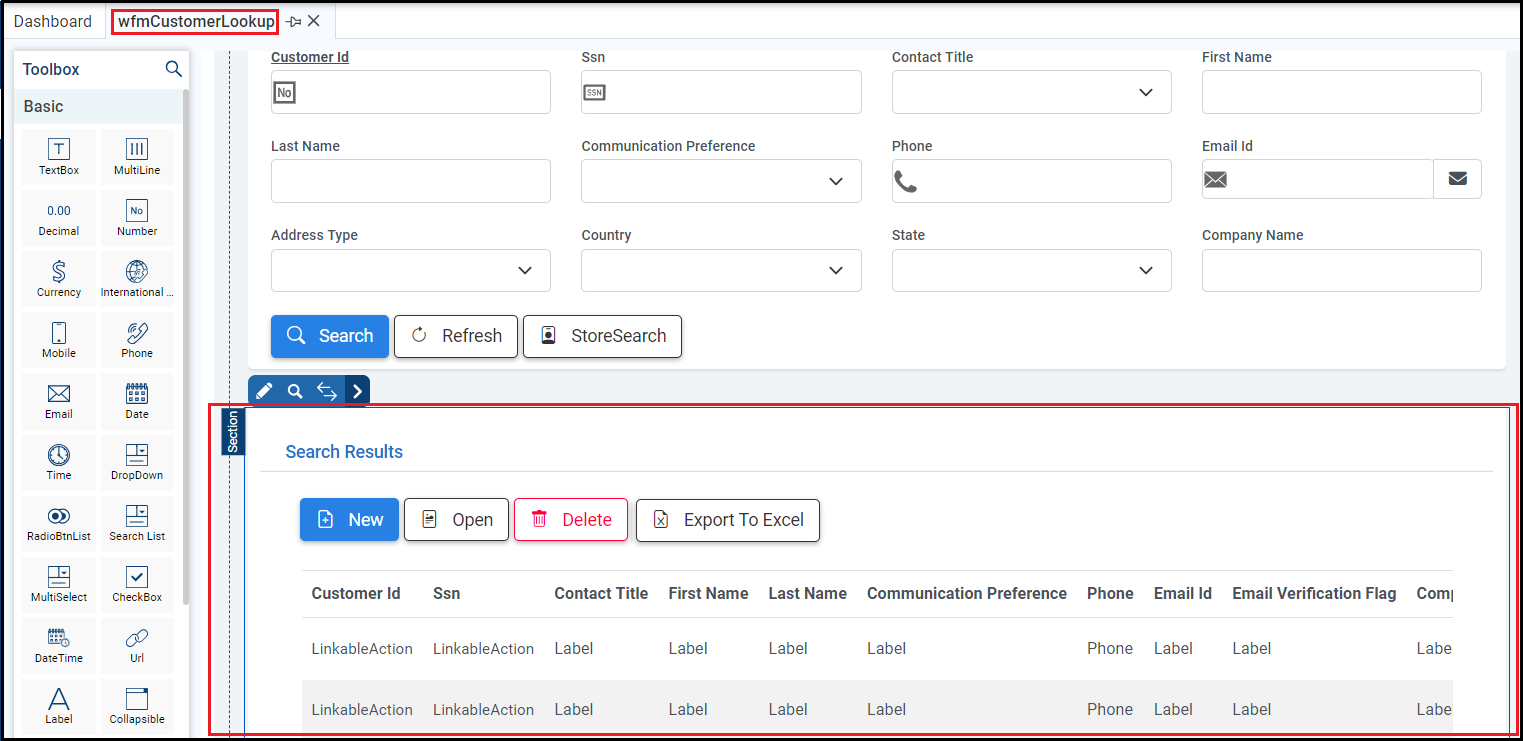
Step 1. Select the data table.
You can configure grouping and filtering on any data table. This example applies this functionality to the data table present in the Search Results section.
Step 3. Open the data table properties and select Allow Grouping and Allow Filtering.
Open the Properties tab from the right panel and set the properties to True:
- Allow Grouping: Enables grouping, which doesn't need anything else to work.
- Allow Filtering: Enables filtering, which doesn't need anything else to work.

Then, run the Preview. Xelence displays the form output. You can test your updated settings.
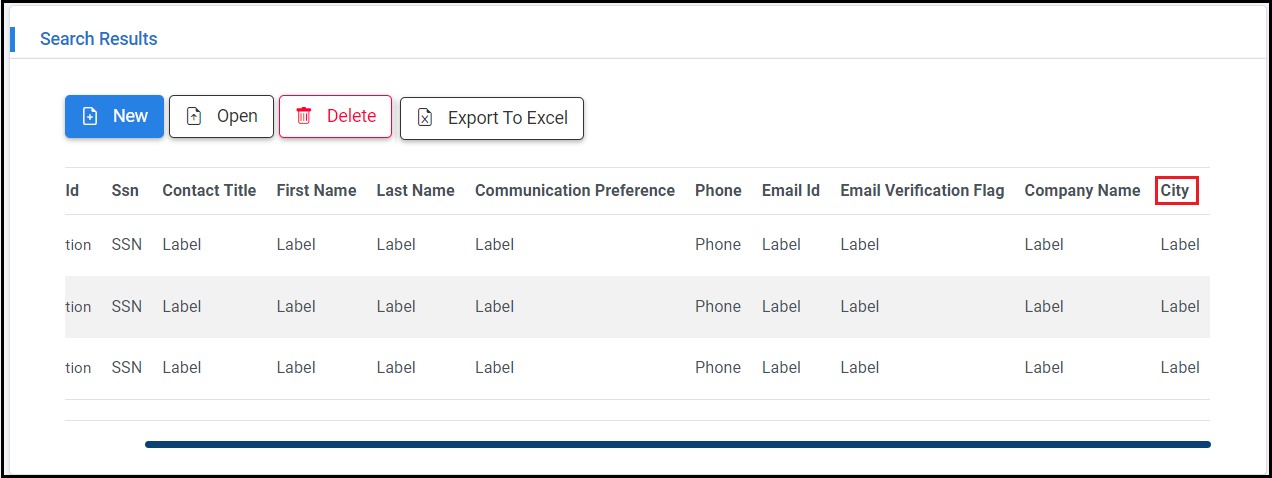
When you have previewed your form, it should look something like this.
You can drag a column header to the top of the data table to group results. You can also filter the data table values according to the criteria entered.
Configure Sort Hierarchy
Configure Deleting Records
This post is part of the Lookup Form topic. Click here to open the Lookup Form Overview.
This post is also part of Controls and Buttons topic. Click here to open Forms Toolbox Controls
#Xelence
#Forms
#ControlsandButtons