Introduction
You can configure a form to achieve responsive design based on the user's device. For example, you might want to hide non-mandatory fields if the user is viewing the form on a device with a smaller screen.
To make controls' behavior dependent on the user's device, you must configure conditions that instruct the form to perform actions on the controls based on the user's device width.
This example configures a form to display a field only if the width of the user's device is greater than that of a typical cell phone.
Prerequisites
- The form you are editing must already exist.
- Controls to be configured, must exist in the form.
|
Quick Steps |
| 1 |
Open the Devices tab |
| 2 |
Add a condition |
| 3 |
Enter the ID, then click OK |
| 4 |
Configure the device width |
| 5 |
Add an If action |
| 6 |
Configure the If action |
| 7 |
Add an Else action |
| 8 |
Configure the Else action |
| 9 |
Save the form |
Detailed Steps
Step 1. Open the Devices tab.
This tab is where you can configure conditions based on the user's device.
Step 2. Add a new condition.
Click the plus icon to add a new condition.
Step 3. Enter the ID, then click OK.
Give your condition a descriptive name.
Step 4. Configure the device width.
This is where you select the device width. The important properties are:
- Operator: Allows you to compare the device width to the Pixels. Options are:
- IsEqualTo
- IsNotEqualTo
- IsLessThan
- IsLessThanOrEqualTo
- IsGreaterThan
- IsGreaterThanOrEqualTo
- Pixels: Number of pixels to compare the device width to with the Operator.
This example's If Configuration applies if the device width is greater than 768, which defines a cell phone.
If desired, before adding a condition, you can choose the Collection ID for which the device width needs to be configured.

It is also possible to define the width with multiple conditions with AND/OR operators, or with groups of multiple conditions.
Select the operator and device width from the dropdown list. This is where you can configure the condition for the device.
Step 5. Add an If action.
Click the Add Action button in the If Configuration Actions section to add an action for the app to take if the condition is true.
Step 6. Configure the If action.
The important properties are:
- Action Type: Type of action the app will perform. Options are:
- Show: The app will display the Controls.
- Hide: The app will not display the Controls.
- Enable: The app will enable the Controls.
- Disable: The app will disable the Controls.
- Script: When the condition is met, the app will run the defined script at the form/portal level.
- Control Formatting: The app will display the Controls in a selected format.
- Controls: Controls the app will apply the action to.
This example uses the Action Type of Show and the Control of the Shipped Date textbox in the Criteria section.
To add controls, you can drag and drop from the control tree, or you can select the control from the drop down (enter text to filter options).
Step 7. Add an Else action.
Click the Add Action button in the Else Configuration Actions section to add an action to take if the condition is false.
Optionally, you can also add Else If actions.
Step 8. Configure the Else action.
The properties are the same as the If action.
This example's Action Type is Hide and the Control is the Order Date textbox.
To add a control, you can drag and drop the control from the control tree, or you can select the control from the dropdown list.
Step 9. Save the form.
Then, run the Preview. Xelence displays the form output. You can test your updated settings.
When you have previewed your form, it should look something like this. In the following example, the device is a Laptop, hence the device width is greater than 768. So, Order Date and Shipped Date both fields are present in the Criteria section.
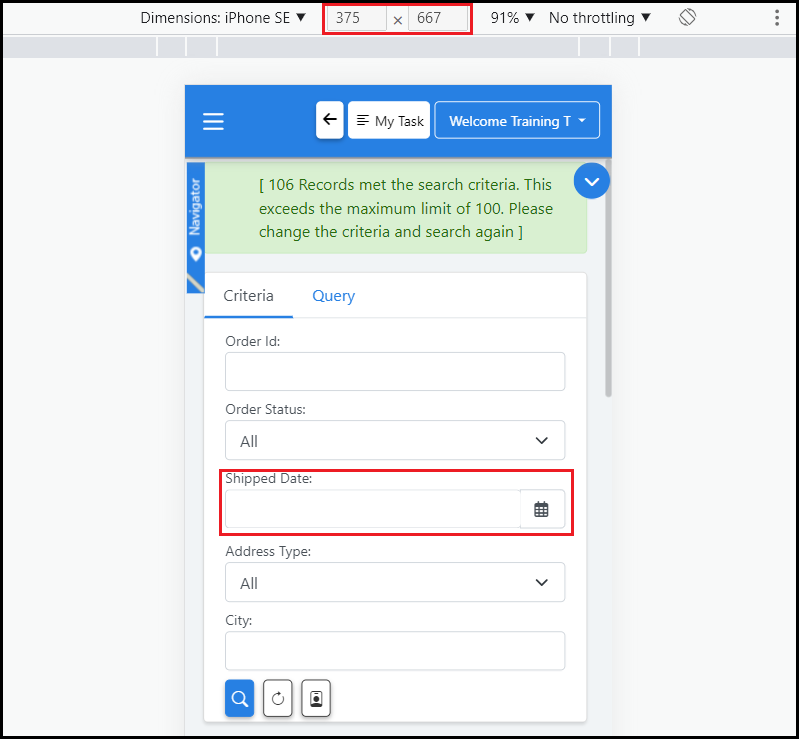
In the following example, the user's device is iPhone SE, hence the width is less than 768. So, only Shipped Date is present in the Criteria section.
#Xelence
#Forms