Introduction
When you have configured a decision table, you should test it to ensure it behaves as you intended. One way to test it is to use a scenario. This means you test the logic independent of your project's data.
Depending on the rule logic that you write the result will either populate in Return Value(s) or Output Field(s) section.
Prerequisites
The rule you are testing must be configured.
|
Quick Steps |
| 1 |
Open the decision table, then open or create the scenario |
| 2 |
Open or create the test case |
| 3 |
Enter the scenario values |
| 4 |
Run the test, then compare the Expected Value to the Actual Value |
| 5 |
View the diagram |
| 6 |
Save the scenario |
Detailed Steps
Step 1. Open the decision table, then open or create the scenario.
Open the decision table you want to test and click the Navigate to Scenario icon. This will create a scenario to test if one does not already exist. If a scenario already exists, Xelence will display it.
Step 2. Open or create the test case.
Xelence creates the scenario with one test case. Click the test case to view it.
At any time, you may create more test cases for the scenario to test the logic with different values by clicking the Create New Test icon.
Step 3. Enter the scenario values.
There are two kinds of values: Input Value and Expected Value.
For the Input Value, enter a value for each defined parameter. In this example, the input is the iintQuantityOFProduct variable.
For the Expected Value, enter the value you expect when the decision table executes with the value(s) you gave as input. In this example, the input is 52. Based on the decision table, the expected value is 4. In a production scenario, you'd enter the value you know is correct from an independent source.
If the output depends on the date the rule is executed, you can enter the Effective Date. Otherwise, the scenario will test the default version of the rule.
Step 4. Run the test, then compare the Expected Value to the Actual Value.
Click the Run Test icon, then click Current Rule (displays the result and diagram for this rule) to execute the rule with the input value(s) you entered.
Xelence provides the following options for running the test:

Only Result: Displays only the result.
Current Rule: Displays the result and diagram for this rule.
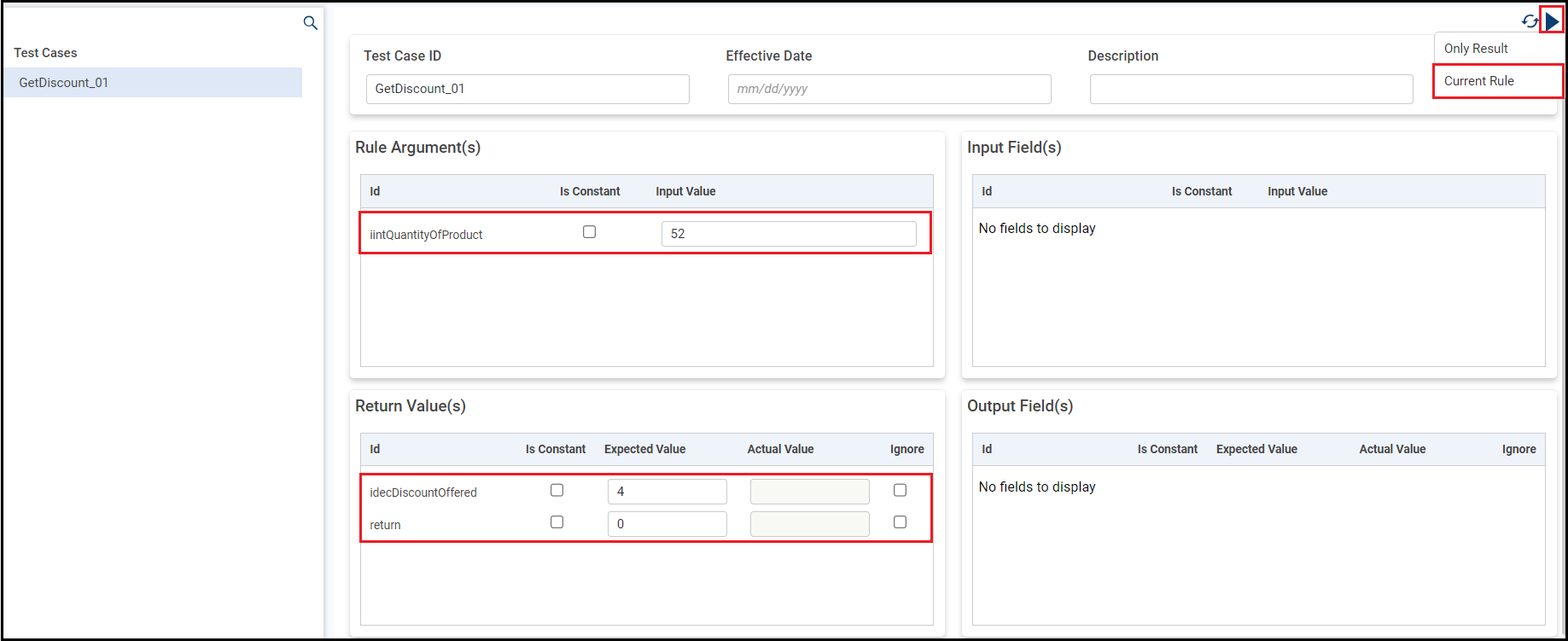
If your logic is correct, the Expected Value and Actual Value should match.
Step 5. Optionally, view the diagram.
Click the View Test Result icon to see the path Xelence followed to product the Actual Result. If your logic is correct, Xelence selects the condition that matches the Input Value you entered and pairs it with the result that matches the Expected Value you entered.
Step 6. Save the scenario.
When you are finished testing cases, save the scenario.
What are the improvements over S3 Version 6?
It is an identical process. However, depending on the rule logic that you write the result will either populate in Return Value(s) or Output Field(s) section.
Related Articles
Create a Decision Table with One In Variable
Add a Variable to an Existing Decision Table and Test the Rule
Add a New-Date Specific Version to the Decision Table and Test the New Version
This post is part of the Rules topic. Click here to open the Rules Overview.
#Xelence
#Rules