Introduction
When you are finished developing your application, deploy it so you can access it on your mobile device.
|
Quick Steps |
| 1 |
Configure the forms |
| 2 |
Preview the app, if desired |
| 3 |
Click the Deploy icon |
| 4 |
Scan the QR code in the Xelence Mobile App |
| 5 |
Download and install the app |
Detailed Steps
Step 1. Configure the forms.
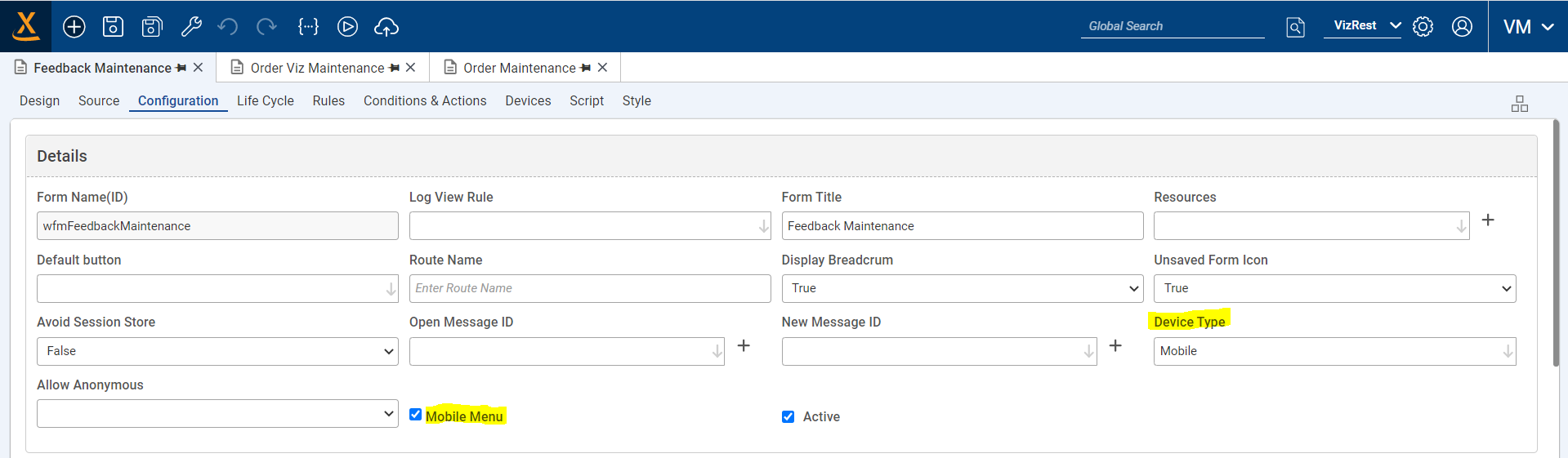
For each form you want included in your mobile app, open the Configuration tab and enter the following:
- Device Type: Mobile
- Mobile Menu: Checked
Step 2. Preview the app, if desired.
Open the Preview menu and click Mobile Preview to view the forms that are configured to work on mobile.

Step 3. Click the Deploy icon.
Click the Deploy icon at the top of the screen.
When clicked, this button makes the Xelence middleware instruct the Mobile POD to prepare the mobile build for IOS and Android and deploy the build to the Microsoft Store (App Center). When the deployment is successful, your browser will display a QR code after 3-5 minutes. This code can be scanned in the Xelence Mobile App to view the deployed mobile application.

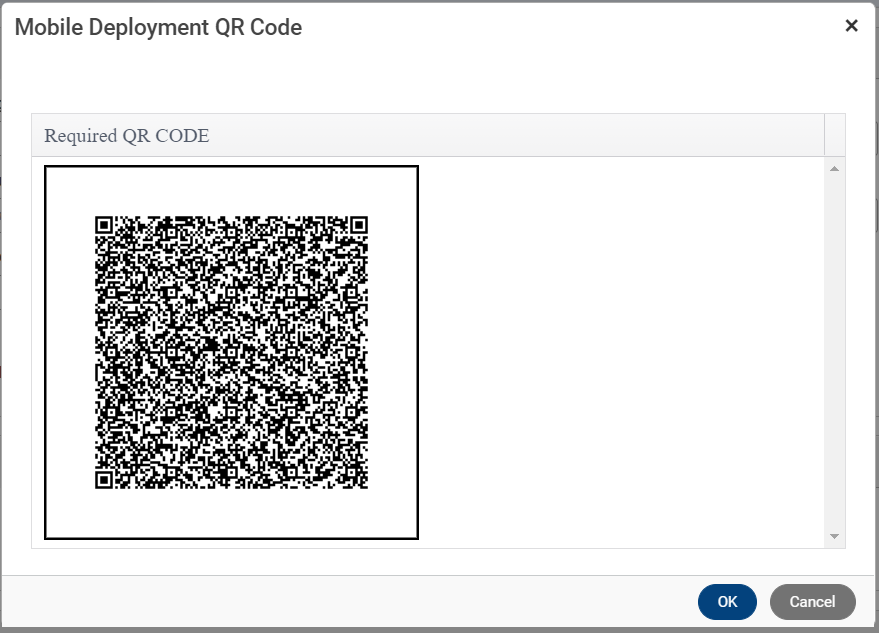
Step 4. Scan the QR code in the Xelence Mobile App.
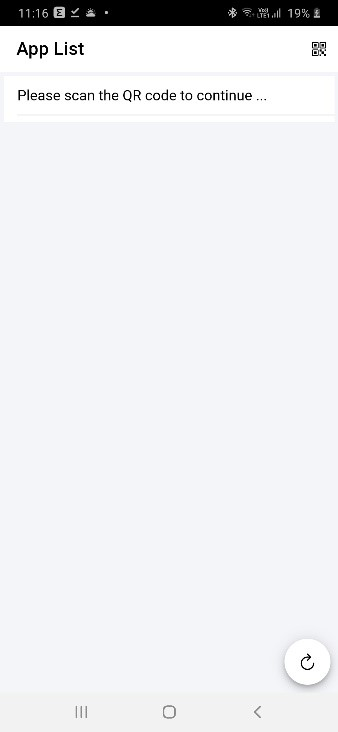
Open the Xelence Mobile App on your mobile device and click the QR icon in the top right corner. The app opens the camera. Scan the code.
Instructions to download the Xelence Mobile App:

Android: Navigate to the following URL: https://chn-mob-qa.sagitec.com/XELENCELauncher/#/applaunch and click the Android App link to download the app. Follow the steps on your
mobile device to install the app.

IOS: Install the TestFlight app from the app store.

If your device's Email ID is already registered as an Apple ID, you will receive an email from Appstore connect requesting authentication. Once you have verified your Email ID, you will
be asked to install TestFlight.

If your Email ID is not already registered as an Apple ID, you will receive an invitation email from Appstore connect to first register your Email ID as an Apple ID. When you have
submitted your registration, you will receive a 6-digit code in both your email and as a text for two-step verification. After verification, you will receive another email asking to install
TestFlight.

If you expect to be able to access TestFlight in the store and you cannot, email archana.sarode@sagitec.com and visweshwaran.mk@sagitec.com with your Email ID. You should receive an invitation shortly. Accept the invitation and you should be able to see the Xelence Mobile App in Testflight.

Open the TestFlight app and select the Xelence app to download the app. Follow the steps on your mobile device to install the app.
Step 5. Download and install the app.
When you have successfully scanned the QR code, your camera will close and the app list will show the app that you have scanned. Click the app's Reload icon to load the app you scanned. Upon reload, your device will download the latest contents and show the login page.
If you have scanned multiple apps, select and swipe the desired app to the left. This will display options to delete the app and a button to make the app default.
#Deploy
#Deployment
#Task Steps
#Everyone
#Text Help